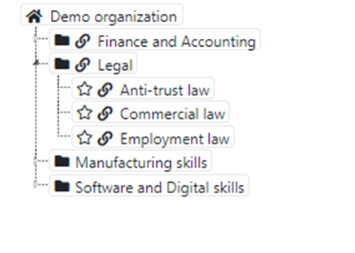
The Skills Base Library provides Administrators with the ability to add skills via roles or by selecting specific skill categories and skills from the library.
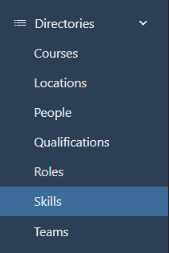
Click on the Directory menu and click Skills.
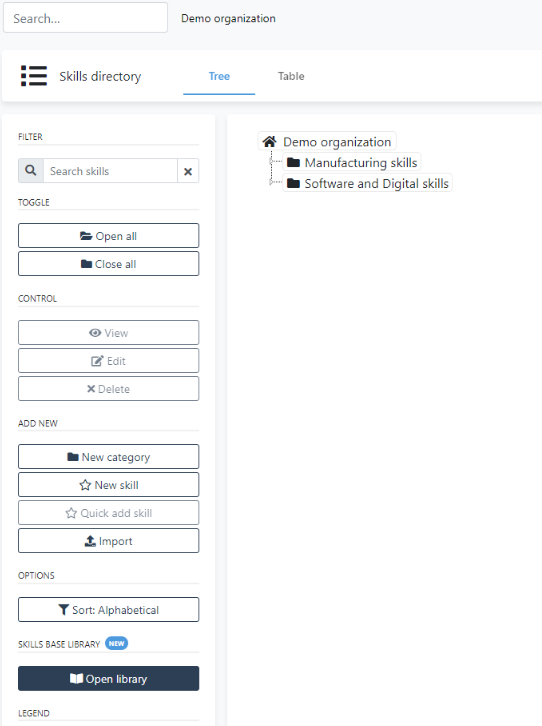
This will display the current skills and the Open Library button on the left side of the display.
Click the Open Library button. The Skills Library will be displayed on the right side of the screen.
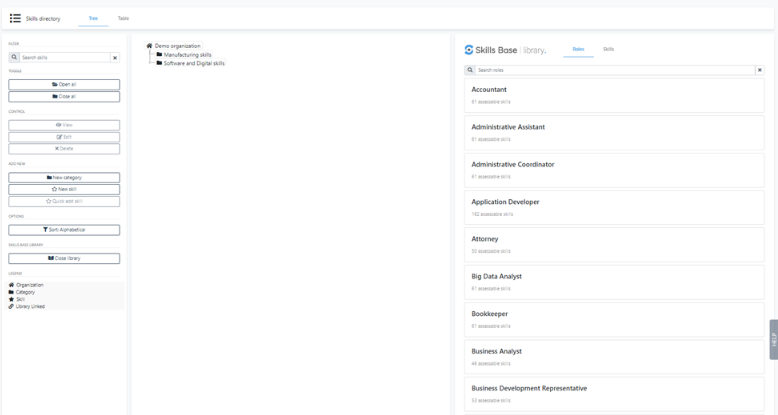
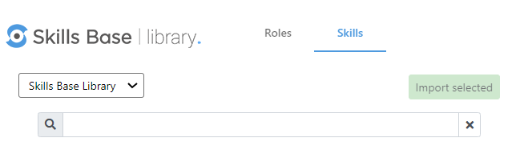
Roles and/or Skills can be imported into the respective directories either by clicking on the Roles link or the Skills link at the top of the library display.
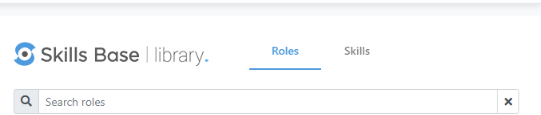
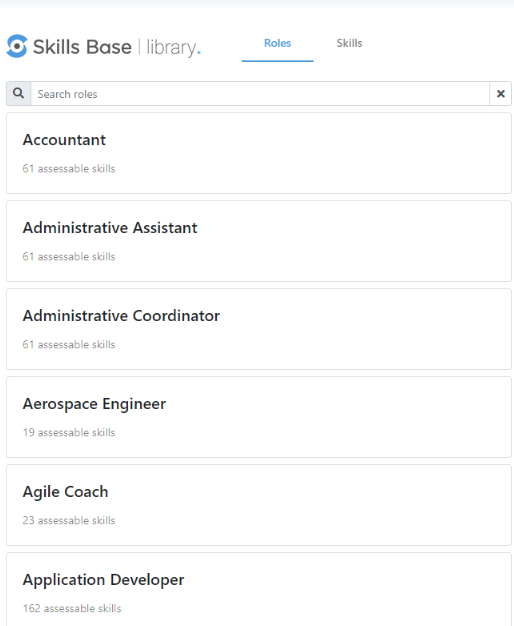
If Roles are selected, they will be displayed in alphabetical order.
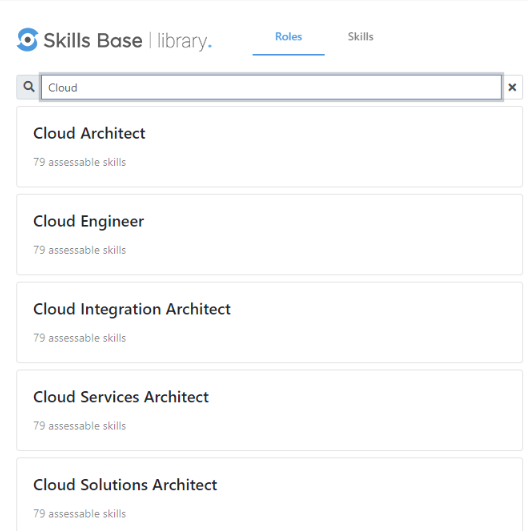
Roles can also be searched for by typing a desired role name in the Search roles.
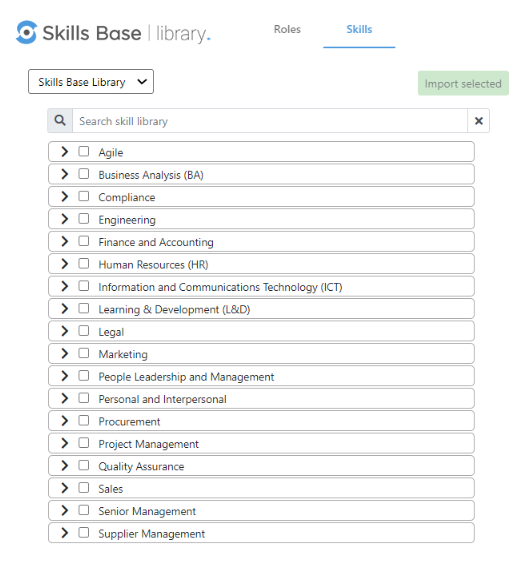
Skill categories are displayed in alphabetical order.
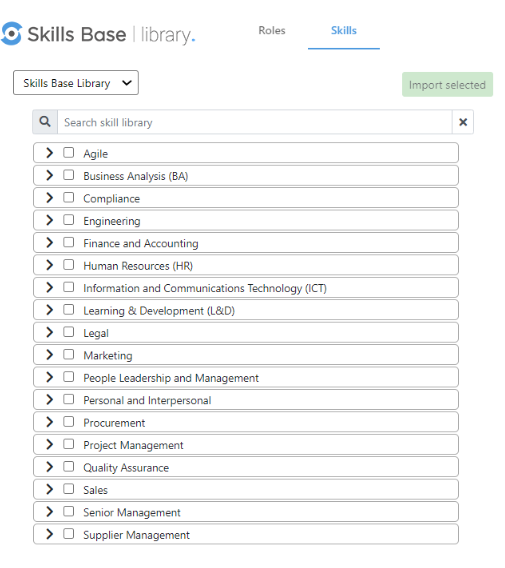
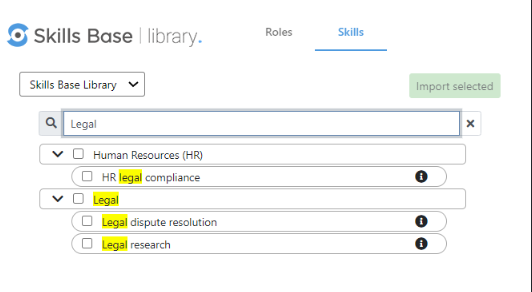
Skills can also be searched for by typing a skill name in the Search skill library.
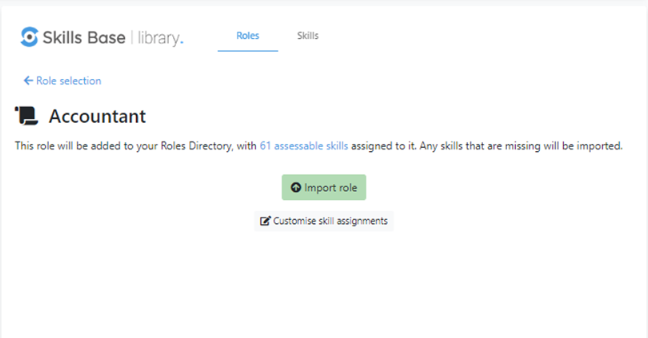
The roles that are provided contain skills that will be added to the Skills directory. The selected role and its associated skills can be imported by clicking on the Import role button. All the skills associated to that role will be added to the skills tree.
As an example, if the role of Accountant is clicked and the Import role button is clicked, the 61 skills associated with the role will be imported into the Skills Directory and the role name will be imported into the Role Directory.
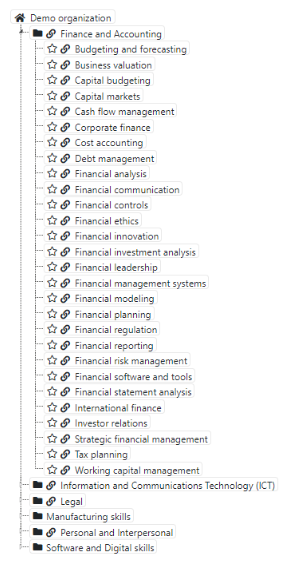
Skills imported from the library can be identified in the skills tree by the 🔗 indicator.
The selected role that is added can be identified in the Roles directory by the indicator Library Linked.

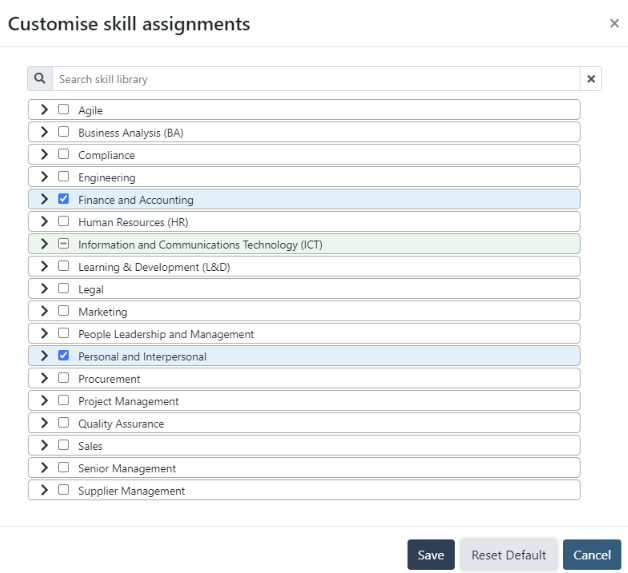
The role skills can be customized prior to being imported by clicking the Customize skill assignments button. This allows for the selection of specific skills from the role prior to it being imported.

If the Skills link is clicked, a list of skill categories will be presented reflecting various verticals.
Skill parent category selections can be expanded to show the specific skills within the category.
Skill categories can be identified by the by the > indicator:
Selected categories and respective sub-categories can be identified by the \/ indicator:
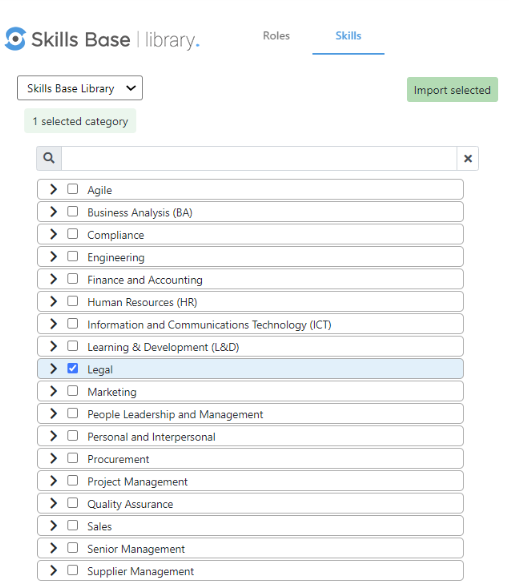
In the example below, we have clicked the skill category Legal. The skills category selected is identified by the check mark next to it. The number of skill categories selected are reflected by the count which is 1 selected category.
When the Parent category Legal is expanded, specific skills can be selected., The skills Anti-trust law, Commercial law and Employment law have been clicked. Skills that are clicked will be indicated with a check mark. The number of skills selected will be shown in the count displayed.
In the example below, three skills were selected (check marks) and the count displayed (3 selected skills).
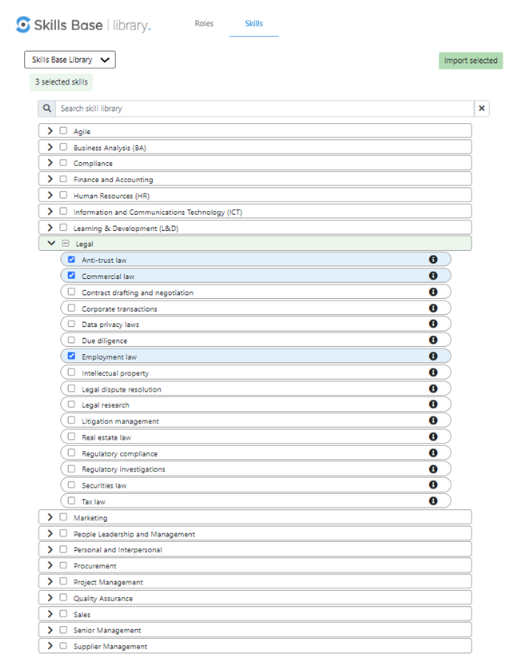
Clicking the Import selected button will result in the category and selected skills being imported.
The skill tree will be updated with the skill category, sub-category and named skills and identified with the Skill Library 🔗 indicator